GB Tracker manual
GB Tracker is a music tracker for the Nintendo Game Boy that runs in the browser, on a desktop with a keyboard and on phones and tablets with touch. Everything you hear is produced by an emulation of the Game Boy's sound hardware (the APU), driven by the same register writes a sound driver makes on a real console. A song that sounds right in the tracker sounds the same on hardware, in the exported ROM and in your own GBDK game.
Open the tracker: https://gb.chiptrackr.com/
Quick start
- Open the tracker. The first visit loads a short demo song; press Space (or the round ▶ button) to hear it. Browsers only allow sound after a click or key press, so the first press also starts the audio.
- Click a cell in the pattern. Coloured columns are note, instrument, volume, effect and effect parameter.
- With the cursor in a note column, play notes on your computer keyboard: the bottom letter row
(
Z S X D C V G B H N J M) is one octave like a piano, the row above (Q 2 W 3 E R 5 T 6 Y 7 U) the next octave. Each note is written into the pattern and the cursor moves down by the edit step. No computer keyboard? Use the on-screen piano under the pattern, or plug in a MIDI keyboard and press MIDI. - Change the current octave with
[and], the instrument with the INS arrows in the toolbar. - Open the INSTR tab on the right to shape the sound, FILE to save your song or export it.
Your work in progress is kept in the browser after every change. Press Save in the FILE tab (or Ctrl+S)
to put the song into your song library, where you can keep as many songs as you like.
The screen
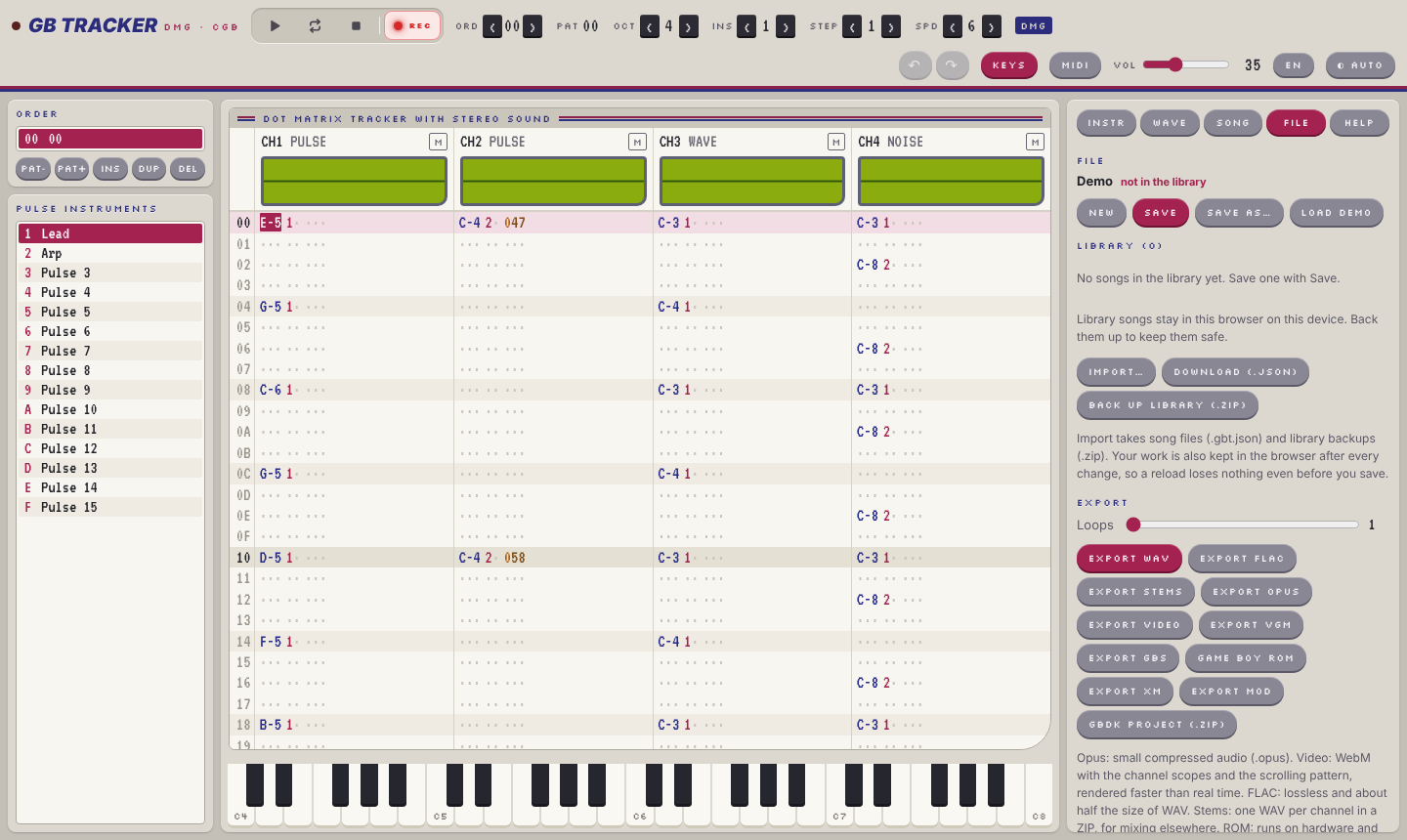
The tracker is dressed like the 1989 Game Boy (DMG): a grey case, red A/B buttons, dark D-pad keys and pixel fonts. The pattern stays a light, colour-coded sheet; only the channel scopes and the wave editor are little green Game Boy screens. In the dark theme the case turns black and the scopes glow like a backlit screen.
Toolbar (top)
| Element | What it does |
|---|---|
| LED | Lights up while the song plays. |
| Play (triangle) | Play the song from the start of the current order position. The key turns red while the song plays. |
| Loop (arrows) | Loop the current pattern, starting at the cursor row. |
| Stop (square) | Stop. |
| REC | Record mode on or off (also Esc). The LED glows red while it is on. When it is off, notes are only played and the pattern is not changed, see Record mode. |
| ORD | Current position in the order list (hex). The arrows step through the song. |
| PAT | Number of the pattern at that position (hex). |
| OCT | Octave for note entry (2–8). |
| INS | Instrument used for new notes (1–F). |
| STEP | Edit step: how many rows the cursor moves after an entry (0–16). |
| SPD | Song speed in ticks per row (1–31), see Speed and tempo. |
| DMG / GBC | Hardware model of the song (change it in the SONG tab). |
| KEYS | Shows or hides the on-screen piano under the pattern. |
| MIDI | Turns MIDI input on or off. While on, it shows the number of connected inputs. |
| VOL | Master volume of the browser playback (default 35). Exports are not affected. |
| Language | Language of the interface: English, Deutsch, Español, Français. The first visit picks the browser's language; your choice is remembered. This manual is in English. |
| Theme | Cycles between automatic (follows the system), light (grey DMG case) and dark (black case). |
Left sidebar
- ORDER: the order list, the sequence of patterns that makes up the song. See Song structure.
- INSTRUMENTS: the 15 instruments of the channel type under the cursor (pulse, wave or noise). Clicking one selects it for note entry and opens it in the INSTR tab.
Centre
- Channel header with an oscilloscope and a mute button (M) for each of the four channels.
- Pattern with one row per line and four channels side by side.
- Piano under the pattern (toggle with KEYS), see On-screen piano.
Right sidebar tabs
| Tab | Content |
|---|---|
| INSTR | Instrument editor. |
| WAVE | Waveform editor for the wave channel. |
| SONG | Title, author, DMG/GBC, speed, pattern tools, follow playback. |
| FILE | The song library (new, save, open, rename, duplicate, delete), import, backups and all exports. |
| HELP | Short reference of keys and effects, and a link to this manual. |
On tablets the layout switches to two columns, on phones to separate views (see Touch and phone use).
Channels and the Game Boy sound hardware
The Game Boy has four sound channels, and the tracker has exactly these four:
| Channel | Type | Registers | What it can do |
|---|---|---|---|
| CH1 | Pulse with sweep | NR10–NR14 | Square wave with 4 duty cycles, volume envelope, length counter, hardware frequency sweep. |
| CH2 | Pulse | NR21–NR24 | Like CH1, without sweep. |
| CH3 | Wave | NR30–NR34 | Plays a user-drawn waveform of 32 samples × 4 bits. 4 volume levels (mute, 100 %, 50 %, 25 %). |
| CH4 | Noise | NR41–NR44 | Pseudo-random noise from a 15-bit or 7-bit shift register (LFSR). Drums, hi-hats, effects. |
Mixing (NR50, NR51) and the power switch (NR52) are shared. Each channel can be sent to the left, right or both outputs, see effect 8xx.
Every channel uses instruments of its own type: CH1 and CH2 use pulse instruments, CH3 wave instruments, CH4 noise instruments. Instrument 3 on CH1 and instrument 3 on CH3 are two different instruments.
The note range is C-2 to B-8 (65 Hz to about 7.9 kHz), seven octaves. C-2 is the lowest C the pulse channels can play. On the noise channel, notes choose a noise clock setting (NR43 shift and divisor) whose rate is close to the note's pitch, so higher notes give brighter noise; the exact pitch of noise is not musical.
Patterns and the pattern editor
A pattern has 64 rows. Every row has a cell for each channel, and every cell has five columns, colour coded:
| Column | Example | Range | Meaning |
|---|---|---|---|
| Note | C-4, A#5, === |
C-2 … B-8 | The note to play. === is note off: the channel is silenced. |
| Instrument | 1 |
1–F | Instrument for this note. Empty: keep the channel's current instrument. |
| Volume | C |
0–F | Start volume of the note (overrides the instrument's volume). |
| Effect | 4 |
0–F | Effect command, see Effects. |
| Parameter | 37 |
00–FF | Two hex digits for the effect. |
Empty columns are shown as dots. Rows are shaded every 4 rows (beat) and every 16 rows (bar). The row being played is highlighted in red, the cursor row in a lighter tint.
Row numbers, order positions, pattern numbers and effect parameters are hexadecimal, as in most trackers.
Entering notes and values
Record mode
The REC key at the end of the transport deck (or Esc) switches record mode on and off. It is on by default, and the
tracker remembers the setting. Its LED glows red while record mode is on; on small phones the key shows only
the LED.
- On: notes and values are entered into the pattern as described below.
- Off: the tracker becomes an instrument to jam on. Notes from the computer keyboard, the on-screen piano,
the keypad and MIDI are only played, on every column, and nothing in the pattern changes: hex digits,
Delete, note off andInsertare ignored. The cursor turns grey so you can see that editing is off. Moving the cursor and playback work as usual, so you can play along with the song.
Entering values
- Notes: move the cursor to a note column and press a note key (see below), or tap a key on the on-screen
keypad. The note is written together with the currently selected instrument, and you hear it.
1(or the key left of1,`) writes a note off===. - Instrument, volume, effect, parameter: move the cursor to that column and type a hex digit
0–9,A–F. In the instrument column0clears the instrument. Typing a parameter digit into a cell without an effect sets the effect to0, so type the effect digit first. - Clear:
DeleteorBackspaceclears the field under the cursor. On the note column it clears note, instrument and volume together. - Edit step: after each entry the cursor moves down by STEP rows. With STEP 0 it stays where it is, which is handy for trying values.
- Insert / delete rows:
Insertpushes the current channel down by one row from the cursor (the last row falls off). Delete row in the SONG tab pulls the rows below up. Both only affect the channel under the cursor. - Transpose: the SONG tab has buttons to move all notes of the current channel in the current pattern up or down by one semitone.
Note keys
The note keys use the physical position of the keys, so they work the same on QWERTY, QWERTZ and AZERTY
keyboards (on QWERTZ the bottom-left note key is Y).
 upper row (octave + 1):   2 3   5 6 7   9 0
                          Q W E R T Y U I O P
 lower row (octave):       S D   G H J   L ;
                          Z X C V B N M , . /
The lower row starts at C of the current octave (Z = C, S = C#, X = D, … M = B, , = C one octave up),
the upper row starts one octave higher (Q = C, 2 = C#, … P = E two octaves up).
Keyboard shortcuts
| Key | Action |
|---|---|
| Note keys | Enter a note (note column) |
1 or ` |
Note off === (note column) |
0–9, A–F |
Enter a hex digit (instrument, volume, effect and parameter columns) |
↑ ↓ |
Previous / next row (wraps around) |
← → |
Previous / next column, continues into the neighbouring channel |
Tab / Shift+Tab |
Next / previous channel |
Page Up / Page Down |
16 rows up / down |
Home / End |
First / last row |
Space |
Play song / stop |
Shift+Space |
Loop the current pattern from the cursor row / stop |
Esc |
Record mode on / off |
Delete, Backspace |
Clear field (or the selected block) |
Insert |
Insert an empty row in the current channel |
[ or Numpad − |
Octave down |
] or Numpad + |
Octave up |
Ctrl+S / ⌘S |
Save the song in the library |
Ctrl+Z / ⌘Z |
Undo |
Ctrl+Y, Ctrl+Shift+Z |
Redo |
Shift+↑ ↓ ← →, Shift+Page Up/Down |
Select a block (rows × channels) |
Ctrl+A / Ctrl+Shift+A |
Select the whole pattern / the whole channel |
Ctrl+C / Ctrl+X |
Copy / cut the block (or the cell under the cursor) |
Ctrl+V / Ctrl+Shift+V |
Paste at the cursor / paste only the filled cells (mix) |
Ctrl+↑ / Ctrl+↓ |
Transpose the block a semitone up / down |
Ctrl+Shift+↑ / Ctrl+Shift+↓ |
Transpose the block an octave up / down |
Shortcuts are ignored while a text field (song title, instrument name, …) has the focus, so typing there works
as usual. Ctrl stands for ⌘ on a Mac.
Undo, blocks, copy and paste
- Undo and redo cover every change to the song: notes, instruments, waveforms, order list, song settings. Changes made within half a second (typing a run of notes, dragging a slider) are one step. Use the keys above, the ↶ ↷ buttons in the toolbar, or ↶ ↷ on the touch keypad. Opening or creating a song starts a new history. Selecting, moving the cursor and playing are not changes.
- Selecting: hold
Shiftand move the cursor, drag over the pattern with the mouse, orShift-click to extend from the cursor. A block always covers whole cells of one or more channels. A click or a cursor move withoutShiftdrops the selection. - Copy, cut, paste: without a selection they work on the cell under the cursor. Paste puts the top left of the block at the cursor; rows and channels past the end of the pattern are left out. Mix paste skips the empty cells of the block, so you can layer, for example, a drum part onto existing notes. After pasting, the pasted block is selected, ready to be transposed. The clipboard is kept while the page is open and works across patterns and songs.
- Transpose moves the notes of the block by semitones or octaves; note-offs stay, notes stop at C-2 and B-8. The Transpose buttons in the SONG tab still transpose the whole channel.
- Cut, paste, transpose and delete need record mode; copy and undo always work.
Touch and phone use
On a phone the tracker shows one view at a time. Switch with the bar at the bottom:
- PATTERN: the pattern and the on-screen keypad.
- ORDER · INSTR: order list and instrument list.
- EDIT: the tabs INSTR, WAVE, SONG, FILE and HELP.
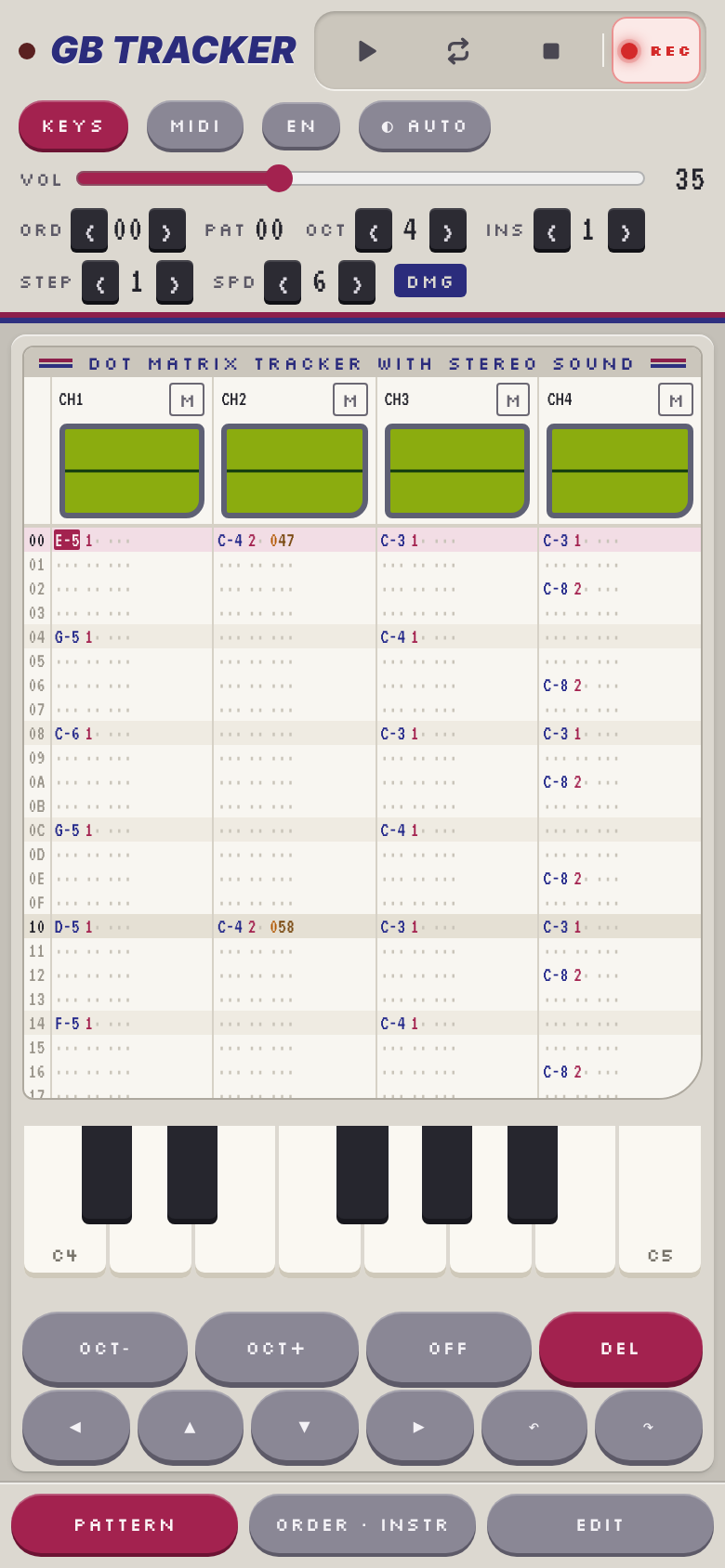
Tap a field in the pattern to put the cursor there. The keypad below the pattern changes with the column:
- On a note column it shows OCT− / OCT+, OFF (note off) and DEL, plus the twelve notes of the current octave when the on-screen piano is hidden. With the piano shown, play the notes on the piano.
- On other columns it shows the hex digits
0–Fand DEL. - The bottom row moves the cursor: ◀ ▶ previous / next column, ▲ ▼ previous / next row.
Notes sound while you hold the key. On narrow screens the pattern scrolls sideways; the channel header scrolls with it.
Tip: add the page to your home screen for a full-screen tracker without browser bars.
On-screen piano and MIDI keyboards
On-screen piano
KEYS in the toolbar shows or hides a piano keyboard under the pattern. The tracker remembers the setting.
- The piano starts at C of the current octave (OCT,
[]) and shows as many octaves as fit the width of the window (up to 4). On touch screens the keys are wider, about 45 px, so a phone shows one octave and a tablet about three. Near the top of the note range the piano shows the highest octaves that fit, so the keys keep their size whatever the octave. - With record mode on and the cursor on a note column, pressing a key enters the note and plays it, like a note key on the computer keyboard. On any other column, or with record mode off, the key only plays the note, so you can try out melodies without changing the pattern.
- Sliding across the keys (with the mouse button or finger held) plays each key you pass, without entering anything. Only the first key you pressed is entered.
- The note sounds while you hold the key, with the current instrument on the channel under the cursor. The key being played is highlighted.
MIDI keyboards
Any MIDI keyboard or controller connected to the computer (USB, or Bluetooth MIDI set up in the system) can play and enter notes.
- Connect the keyboard, then press MIDI in the toolbar. The browser asks for permission the first time.
- The button now shows the number of inputs, for example MIDI 1. Hover over it to see their names. Devices plugged in later are picked up automatically.
- Play: notes follow the same rules as the on-screen piano. With record mode on and the cursor on a note column a key enters the note, otherwise it only plays it. A note sounds until you release all keys.
MIDI listens on all inputs and all MIDI channels; velocity is ignored, the volume comes from the instrument. MIDI note 60 (middle C) is C-4 in the tracker, so the tracker's range C-2 to B-8 is MIDI 36 to 119; notes outside it are ignored.
The tracker remembers that MIDI was on and turns it on again next time. Press MIDI again to turn it off.
Web MIDI works in Chrome, Edge, Opera and Firefox on desktop and in Chrome on Android. Safari (macOS and iOS) does not support it; the button then explains this when you hover over it or press it.
Song structure: order list and patterns
A song is a list of positions (the order list), and each position plays one pattern. The same pattern can appear at several positions, so a chorus is written once and played many times. When playback reaches the end of the order list it starts again from the top, so every song loops.
The order list shows the position (left) and the pattern number (right). Click a position to edit its pattern. The buttons below the list:
| Button | Action |
|---|---|
| PAT− / PAT+ | Change which pattern this position plays. Going past the last pattern creates a new, empty one. |
| INS | Insert a new position after the current one, playing the same pattern. |
| DUP | Insert a new position with a copy of the current pattern, so you can change it independently. |
| DEL | Delete the current position (the pattern itself stays in the song). |
The SONG tab offers the same for the pattern under the cursor: New pattern (empty, inserted after the current position), Duplicate, and Clear (asks first).
Effects Bxx (jump to position) and Dxx (pattern break) change the order while playing, for example to end a song with an intro that is not repeated.
Instruments
Each channel type has 15 instruments (1–F). Open the INSTR tab, pick the type (PULSE, WAVE, NOISE) and the instrument number, and change its settings. Changes are heard immediately. ▶ Test plays the instrument at C of the current octave while you hold it, Use for note entry makes it the current instrument.
Every setting is a register value of the real hardware, so the instrument editor is also a direct view on what the Game Boy does.
Pulse instruments (CH1, CH2)
| Setting | Range | Hardware | Effect on the sound |
|---|---|---|---|
| Name | text | – | Only for you. |
| Duty | 12.5 %, 25 %, 50 %, 75 % | NRx1 bits 6–7 | Width of the square wave. 50 % is hollow, 12.5 % thin and nasal. 25 % and 75 % sound the same. |
| Volume | 0–15 | NRx2 bits 4–7 | Start volume. |
| Envelope up | on/off | NRx2 bit 3 | Direction of the volume envelope. |
| Envelope period | 0–7 | NRx2 bits 0–2 | Speed of the envelope: the volume changes by 1 every period × 1/64 s. 0 = constant volume. |
| Length | 0–64 | NRx1 bits 0–5, NRx4 bit 6 | Note stops by itself after length × 1/256 s. 0 = plays until the next note or note off. |
| Sweep period | 0–7 | NR10 bits 4–6 | CH1 only. How often the hardware sweep changes the pitch (× 1/128 s). 0 = sweep off. |
| Sweep down | on/off | NR10 bit 3 | CH1 only. Sweep direction. |
| Sweep shift | 0–7 | NR10 bits 0–2 | CH1 only. Size of each sweep step; smaller numbers make bigger steps. 0 = no change. |
The sweep is the classic Game Boy "laser" or "pew" sound. Upward sweeps that go past the top of the frequency range silence the channel, exactly as on hardware.
Wave instruments (CH3)
| Setting | Range | Hardware | Effect on the sound |
|---|---|---|---|
| Sample | —, 0–F | wave RAM, timer | Play a sample (drums, voices) instead of the waveform. — = play the waveform. |
| Waveform | 0–F | wave RAM | Which of the 16 waveforms (WAVE tab) to play. |
| Volume | Mute, 100 %, 50 %, 25 % | NR32 | The wave channel has only these four levels. |
| Length | 0–256 | NR31, NR34 bit 6 | Note stops after length × 1/256 s. 0 = off. |
The wave channel has no envelope. The volume column of the pattern is mapped to the four levels:
0 = mute, 1–3 = 25 %, 4–7 = 50 %, 8–F = 100 %.
Noise instruments (CH4)
| Setting | Range | Hardware | Effect on the sound |
|---|---|---|---|
| Volume, Envelope up, Envelope period, Length | as for pulse | NR41, NR42 | Same as on the pulse channels. Short decays (period 1–2) make drums. |
| 7-bit noise | on/off | NR43 bit 3 | On: short 7-bit shift register, a metallic, tonal buzz. Off: 15-bit, white noise. |
The pitch of the noise comes from the note in the pattern (see Channels). Typical settings: kick around C-3 to C-4 with a short decay, snare and hi-hat at higher notes with a very short decay.
Macros
Every instrument has four macros: tables that change the sound once per tick (60 times a second) while a note plays, like the tables in LSDJ or the sequences in FamiTracker. Type one number per tick, separated by spaces; the bar graph under the field shows the table. Put | before the step the macro loops back to. Without |, the last step holds until the note ends. An empty field turns the macro off.
| Macro | Values | What it does |
|---|---|---|
| Volume | 0–15 | Scales the note's volume (15 = full, 0 = silent). Replaces the hardware envelope while it is on. |
| Arpeggio | −48 to 48 | Semitones added to the note: 0 4 7 | 0 4 7 keeps cycling a major chord. Also changes the noise pitch. |
| Pitch | −128 to 127 | Added to the period register; + is higher. 0 -40 -80 -120 drops like a kick drum. Not on noise. |
| Duty / Waveform / 7-bit noise | 0–3, 0–F, 0–1 | Pulse: the duty cycle (12.5, 25, 50, 75 %). Wave: the waveform. Noise: 7-bit (1) or 15-bit (0). |
A macro starts over with every new note. A volume in the volume column or a Cxy effect does not restart it;
the macro volume is then scaled by that volume. Macros work on top of the effects, so a slide or a 0xy
arpeggio still applies.
What the hardware does with each change:
- Duty is written to NR11/NR21 and takes effect at once, without restarting the note.
- Arpeggio and pitch are written to the period registers (NRx3/NRx4) without a trigger, as with slides.
- Wave channel volume is written to NR32 and also changes without a restart.
- Pulse and noise volume need a retrigger: NRx2 only takes effect when the channel restarts. The tracker retriggers only when the value changes, as Game Boy drivers do. A restart also resets the length counter and channel 1's sweep.
- Waveform changes turn the wave channel off, load the new waveform into wave RAM and restart it. On the DMG, wave RAM may not be written while the channel plays.
- 7-bit noise is written to NR43 with the next pitch write, without a restart.
Every export that plays the song through the Game Boy driver (ROM, GBS, VGM, GBDK, WAV, FLAC, Opus, video) includes the macros. XM and MOD leave them out; the export lists them under its warnings.
Waveforms
The WAVE tab edits the 16 waveforms (0–F) for the wave channel. A waveform has 32 samples with 16 levels (0–15), exactly the 16 bytes of the Game Boy's wave RAM.
Draw with the mouse or a finger on the green display.
Presets: triangle, saw, square, sine, pulse25 replace the current wave.
HEX: the wave as 32 hex digits, one per sample. Edit them and press Enter to apply; useful to copy waves between songs or from other Game Boy tools.
Import audio…: makes the waveform from an audio file (WAV, or anything else your browser can play, such as MP3, OGG or FLAC). Stereo files are mixed to mono, the level is normalised to use all 16 steps.
- Short files of up to 2048 samples are treated as one single-cycle waveform (the format of waveform libraries such as AKWF) and squeezed into 32 samples as a whole.
- Longer recordings, such as a sustained synth or organ note, are searched for their pitch: one period is cut out of the loudest part of the file, starting at a rising zero crossing. Recordings without a clear pitch (noise, drums) are rejected.
The result is an ordinary waveform: it can be played at any pitch and edited further.
A changed waveform is used from the next note on. To load a new wave the tracker briefly switches the wave channel's DAC off, as hardware drivers do; this avoids the DMG wave RAM corruption bug.
Effect 9xx switches the waveform during a note on the wave channel.
Samples
Real samples, such as drums, voices or any short recording, play on the wave channel the way LSDJ kits do it. The wave channel only holds 32 nibbles at a time, so the driver keeps refilling wave RAM with the next part of the sample from a timer interrupt, 256 times a second.
Import: in the WAVE tab, press Import sample… under SAMPLES and pick an audio file (WAV, or anything your browser can play). It is mixed to mono, silence at the start and end is cut off, the level is normalised and it is converted to 4 bits at 7936 Hz. A song holds up to 16 samples (0–F) of up to 4 seconds each. In the list you can rename a sample, listen to it (▶) or delete it (✕).
Play: choose the sample in a wave instrument (INSTR tab, WAVE, Sample). Every note of that instrument
starts the sample from the beginning; it plays once and stops at its end, at a note off or note cut (E00), or
when another note starts on CH3.
- Fixed pitch: a sample always plays at its own speed. The note only says when it starts, so any note
works (
C-5is a good habit). Arpeggio, slides, portamento, vibrato and9xxhave no effect on samples. - Volume: the instrument's volume and the volume column work as for waveforms (mute, 100 %, 50 %, 25 %). The length setting does not apply.
- Sound: 4 bits and 7936 Hz give the gritty sound of Game Boy drum kits. Short, loud, punchy sounds work best; normalise and compress them before importing if they sound too quiet.
How it works on the hardware: the wave channel plays at period 1792, one nibble every 512 clocks (8192 Hz),
so its 32 positions take exactly 16384 clocks. The timer (16384 Hz clock, TMA 0xC0) interrupts every 16384
clocks. Each time the driver switches the DAC off (NR30 = 0x00), which disables the channel so wave RAM can be
written without the DMG corruption bug, writes the next 16 bytes, switches the DAC on and restarts the channel
(NR33 = 0x00, NR34 = 0x87). After a restart the channel first plays the old sample buffer, then positions 1
to 31; position 0 is never reached before the next refill. So each refill carries 31 new nibbles: 31 × 256 =
7936 samples per second. The DAC is off for a few microseconds per refill on real hardware, a faint 256 Hz
buzz that is part of the LSDJ-style sample sound.
Samples are in every export: WAV and VGM (each refill at its exact clock), the Game Boy ROM, GBS and GBDK exports (with the timer interrupt driver), and XM and MOD (as one-shot samples at 7936 Hz).
Effects
An effect is one hex digit followed by a two-digit parameter (xx, or x and y for two separate digits).
The player runs once per frame (a tick, 59.73 per second); a row lasts speed ticks. Effects act on the
row they are on, unless the description says they remember their value.
| Effect | Name | Description |
|---|---|---|
0xy |
Arpeggio | Cycles every tick between the note, the note + x semitones and the note + y semitones. 037 is a minor chord, 047 a major chord. 000 is no effect. |
1xx |
Pitch slide up | Raises the frequency register by xx every tick (not on the first tick of the row). |
2xx |
Pitch slide down | Lowers the frequency register by xx every tick. |
3xx |
Portamento | Slides from the playing note to the note in this row with speed xx, instead of restarting it. 300 keeps the last speed. Needs a note that is already playing. |
4xy |
Vibrato | Speed x, depth y. A 0 keeps the last value, so 400 continues the previous vibrato. |
5xx |
Master volume | Writes xx to NR50: bits 4–6 left volume, bits 0–2 right volume (0–7 each). 577 is full volume. |
7xx |
Note delay | Plays the whole cell xx ticks later. Must be smaller than the speed. |
8xx |
Panning | Writes xx to NR51. High digit: channels sent to the left output, low digit: to the right (bit 0 = CH1, bit 1 = CH2, bit 2 = CH3, bit 3 = CH4). 8FF = all channels on both sides, 8F0 = all left, 81E = CH1 left only and CH2–CH4 right only. |
9xx |
Duty / waveform | Pulse channels: duty 0–3 (12.5 %, 25 %, 50 %, 75 %). Wave channel: waveform 0–F. |
Axy |
Volume slide | Every tick the volume goes up by x and down by y (0–15). |
Bxx |
Position jump | After this row, continue at order position xx. |
Cxy |
Volume and envelope | Volume x; y sets the envelope: bit 3 = up, bits 0–2 = period. CF0 = full volume, constant; CF3 = full volume, fading out. |
Dxx |
Pattern break | After this row, continue at row xx of the next order position. |
Exx |
Note cut | Silences the channel after xx ticks. E00 cuts immediately. |
Fxx |
Set speed | Sets the speed to xx ticks per row. F00 does nothing. |
Effect 6 is not used.
Notes on effects:
- Pitch slides, portamento and vibrato work on the Game Boy frequency register, not in semitones. The same value therefore slides faster in pitch on high notes than on low notes, as in Game Boy music drivers. They have no effect on the noise channel.
- On the Game Boy a volume change only takes effect when the note is restarted. Volume column entries without a
note,
AxyandCxytherefore retrigger the channel, which can be heard as a small click on some sounds. This is a property of the hardware. - In pattern loop mode (⟳) playback stays in the looped pattern:
Bxxrestarts it from the top,Dxxcontinues at row xx of it.
Speed and tempo
The speed is the number of ticks per row (1–31, default 6). One tick is one frame of the Game Boy's screen, 59.73 per second. With 4 rows per beat:
| Speed | BPM |
|---|---|
| 3 | 299 |
| 4 | 224 |
| 5 | 179 |
| 6 | 149 |
| 7 | 128 |
| 8 | 112 |
| 10 | 90 |
| 12 | 75 |
The SONG tab shows the BPM for the current speed. Fxx changes the speed during the song; alternating speeds
(for example F06 and F05 on every other row) give tempos in between, and swing.
DMG and Game Boy Color mode
Each song is made for one model, set in the SONG tab under Hardware:
- DMG: the original Game Boy (and Game Boy Pocket).
- GBC: the Game Boy Color.
Both have the same four sound channels. The setting switches the emulation to the exact behaviour of that model where they differ:
- Wave RAM content after power-up, and access to wave RAM while the wave channel plays. On the DMG, restarting the wave channel while it plays can corrupt wave RAM; the GBC does not do this.
- Length counters when the APU is powered off (DMG keeps them, GBC clears them).
- The analogue high-pass filter (GBC output has less bass "drift").
- The GBC's PCM12/PCM34 registers, which let software read the channel outputs.
Exports follow the setting: a GBC song is exported as a .gbc ROM with the Color flag and a white/red colour
palette, and the GBDK Makefile marks the ROM as Color compatible. A GBC ROM also runs on a DMG.
Music written for DMG plays on a GBC too; choose GBC if your game is a Color game and you want the tracker to sound exactly like the target.
Playback, scopes and mixing
- ▶ / Space plays the song from the start of the current order position.
- ⟳ / Shift+Space loops the current pattern, starting at the cursor row.
- ■ stops. Pressing Space again also stops.
- Follow playback (SONG tab) makes the pattern view follow the song. Switch it off to edit another part while the song plays.
- Scopes: each channel header shows its waveform live, centred on the middle line like the Game Boy's output (its capacitor removes the DC offset of the DACs).
- Mute: M on a channel header mutes or unmutes the channel. Mute only affects playback in the tracker, not exports.
- VOL in the toolbar sets the listening volume; it does not change the song or the exports.
Saving and loading
The tracker keeps two things in your browser:
- The working copy: the song you are editing. It is stored after every change and comes back when you reload or reopen the page, even if you have not saved it.
- The song library: every song you saved, with its title, author, hardware, number of patterns and the date of the last save.
Both belong to the browser and the device: they are lost when you clear the site data, and private windows may not keep them (the FILE tab says so when the browser refuses to store the library). Use Back up library (.zip) now and then, and download song files for anything you want to keep or move to another device.
Install as an app and use offline
GB Tracker is a web app you can install (a PWA). After the first visit the browser keeps the whole site, the tracker and this manual, and a message says that it now also works without a connection.
- Android (Chrome, Edge, Samsung Internet): open the browser menu and choose Install app or Add to Home screen.
- iPhone and iPad (Safari): tap Share, then Add to Home Screen.
- Desktop (Chrome, Edge): click the install icon at the right of the address bar.
The installed app opens in its own window without the browser bar and starts offline as well. Songs stay in the same place as in the browser (the working copy and the library of this browser), so nothing is lost by installing. When a new version of the tracker is online, it is loaded in the background and a message asks you to reload the page to use it.
The FILE tab
The top line shows the title of the song you are editing and its state: saved, unsaved changes, or not in the library (a new song, the demo, or a song whose library entry was deleted). While there are unsaved changes the FILE tab shows a dot.
| Button | Action |
|---|---|
| New | Start an empty song. |
| Save | Save the song in the library, over its library entry if it has one (Ctrl+S). |
| Save as… | Save a copy under a new title as a new library entry; you continue with the copy. |
| Load demo | Replace the song with the demo. |
| Import… | Add song files (.gbt.json, .json) or library backups (.zip) to the library. Several files can be chosen at once. A single song file is also opened. |
| Download (.json) | Download the song you are editing as <title>.gbt.json. |
| Back up library (.zip) | Download every library song as a .gbt.json file in one ZIP. Import the ZIP to restore them. |
New, Load demo, opening a library song and importing a single file ask first when the song you are editing has unsaved changes.
Questions like these open a small dialog inside the tracker. The red button on the right does the action (it is
named after it: Discard, Delete, Rename, …); Cancel, Esc or a tap outside the dialog leave
everything as it was. Where a title is asked for, type it and press Enter or the red button.
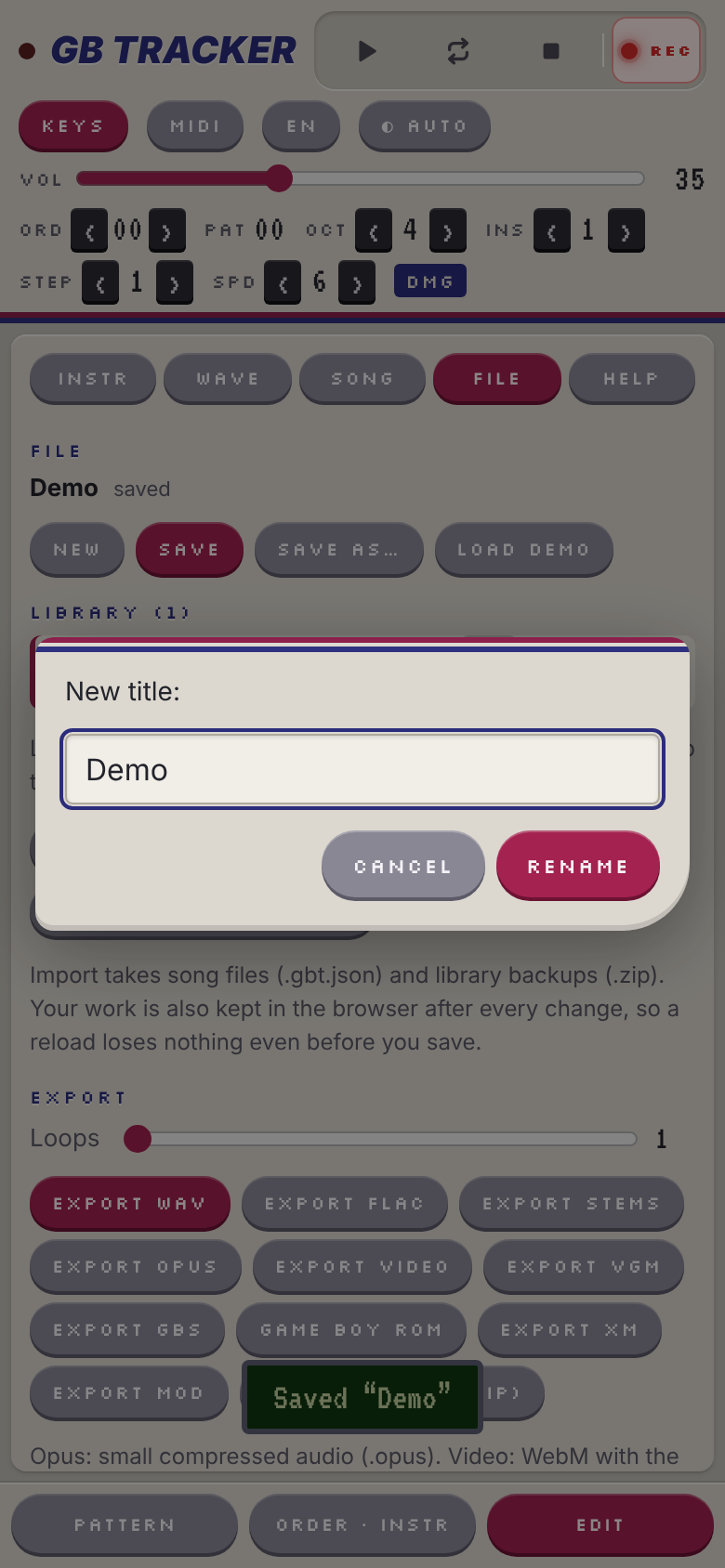
The library list
Tap or click a song's title to open it. The song you are editing is marked with a coloured bar. The buttons next to each song:
| Button | Action |
|---|---|
| ✎ | Rename the song (asks for the new title). |
| ⧉ | Duplicate it; the copy is called "… (copy)". |
| ♫ | Use its instruments, waveforms and samples in the song you are editing; the notes stay as they are. Handy for a set of songs that share one sound. |
| ✕ | Delete it from the library (asks first; this cannot be undone). |
Song files are plain JSON and contain everything: patterns, order, instruments, waveforms, title, author, model and speed. Title and author are set in the SONG tab.
Exporting
All exports are in the FILE tab and are created in the browser; nothing is uploaded. The file name comes from the song title.
All hardware exports (ROM, GBS, VGM, GBDK) are built from the same data: the exact register writes the tracker's player makes, frame by frame. They play back exactly what you hear, including the loop point of the song. Tests in the repository check this sample for sample.
| Export | File | Use it for |
|---|---|---|
| Export WAV | .wav |
Audio: 16-bit stereo, rendered by the emulator. The Loops slider sets how many times the song is played (1–4). |
| Export FLAC | .flac |
The same audio, lossless and about half the size of the WAV. Decodes to exactly the WAV's samples. |
| Export stems | <name>_stems.zip |
One WAV per channel (_ch1_pulse.wav … _ch4_noise.wav), each with the other three channels muted, for mixing in a DAW. Together they add up to the full mix. |
| Export Opus | .opus |
Small compressed audio (Ogg Opus, 160 kbit/s) for sharing and messengers. Needs a browser with WebCodecs, see Video and Opus. |
| Export video | .webm |
A video of the song with the four channel scopes and the scrolling pattern, see Video and Opus. |
| Export VGM | .vgm |
Video game music players such as VGMPlay, or foobar2000 and Winamp with a VGM plugin. VGM 1.71 with the Game Boy DMG chip, loop point, and title/author tags. |
| Export GBS | .gbs |
Game Boy music players (GBS v1). Title and author are in the header. |
| Game Boy ROM | .gb / .gbc |
Playing on a real Game Boy (flash cart), on a Game Boy Color, or in an emulator. |
| Export XM | .xm |
Opening the song in other trackers (FastTracker 2, OpenMPT, MilkyTracker, …), see XM and MOD. |
| Export MOD | .mod |
ProTracker and everything that plays Amiga modules, see XM and MOD. |
| GBDK project (.zip) | <name>_gbdk.zip |
Using the music in your own game, see GBDK. |
Game Boy ROM
The ROM plays the song in an endless loop and shows the title, author, model and a play timer. It works on original hardware with a flash cartridge and in Game Boy emulators. Songs that do not fit into a 32 KiB ROM are stored over several banks of an MBC5 cartridge (up to about 4 MiB).
Songs with samples also use the timer interrupt (0x50) to stream them into wave RAM.
GBS
GBS files contain the same player as the ROM and are called once per frame (VBlank timing). They play in GBS players and in many multi-format music players.
Songs with samples run from the timer instead: the GBS player calls the driver 256 times a second, it refills wave RAM each time and plays a frame whenever 70224 clocks (one VBlank) have added up. Frames then start on that 256 Hz grid, up to 4 ms off the exact VBlank time; the average tempo is exact.
Video and Opus
Export video renders a 1280×720 WebM video at 30 frames per second: title and author, the playing time and
position, the four channel scopes and the pattern scrolling with the playing row, in the colours of the current
theme (light or dark). The sound is Opus, the picture VP9 (or VP8 where the browser has no VP9 encoder).
Export Opus makes the same sound as an .opus file.
The song is rendered offline frame by frame, so the export is usually faster than the song itself and has no dropouts. The Loops slider applies as for WAV. The video plays in browsers, VLC and most players, and can be uploaded to YouTube, Mastodon and the like.
Both exports use the browser's WebCodecs encoders: current Chrome, Edge and Firefox have them. Where they are missing (for example in some Safari versions) the status line says so; use WAV or FLAC instead.
XM and MOD
XM and MOD are sample-based, so the Game Boy sound is rebuilt from samples. Notes play at exactly the tracker's pitch (the tests check this against libopenmpt, the engine of OpenMPT).
- Instruments become samples: a pulse instrument is one period of its duty cycle, a wave instrument one
period of its waveform, a noise instrument the noise channel's random sequence (15 or 7 bit). Only the
instruments the song uses are exported, named
P1,W3,N2… after their channel type and number. A wave instrument that plays a sample becomes that sample, one-shot and tuned so that its notes (all written asC-5) play at 7936 Hz, like in the tracker. - Envelopes: XM gets a volume envelope that follows the hardware envelope and the length counter. MOD has no envelopes, so a fading or length-limited instrument is rendered into its sample (exact at the note the instrument plays most).
- Tempo: one row tick is one frame, as on the Game Boy (speed from the song, 149 BPM ≈ 59.6 ticks per second).
- Effects: arpeggio, slides, portamento, vibrato, volume slide, jump, break, cut, delay and speed are
translated; pitch slides are converted from Game Boy period steps to semitones at the note being played.
The volume column becomes the XM volume column (MOD:
Cxxwhen the effect column is free).8xxpans all channels as on the Game Boy.5xxbecomes the XM global volume (Gxx). - What is approximated:
9xx(duty and waveform changes), pitch sweeps, envelope changes withCxy,5xxin MOD and anything that needs a second effect column. After the export the FILE tab lists what was approximated and how often. - MOD only: MOD has three octaves, so each sample is stretched or shortened by octaves to fit the notes the instrument plays; notes still outside the range move by octaves. Patterns longer than 64 rows are split. MOD allows 31 samples.
Using the music in a GBDK game
The GBDK project (.zip) export contains a ready-to-build project for GBDK-2020:
| File | Content |
|---|---|
gbtr_player.c, gbtr_player.h |
The player, about 40 lines of C. |
<name>.c, <name>.h |
The song as const uint8_t <name>_data[] and its loop offset <name>_loop; with samples also <name>_samples[] and <name>_sample_chunks[]. |
main.c |
Example program that prints the title and plays the song. |
Makefile |
Builds <name>.gb with GBDK's lcc. |
README.md |
Short instructions. |
<name> is the song title in lower case with _ for other characters (My Song! becomes my_song).
Build the example
unzip my_song_gbdk.zip
cd my_song
make GBDK_HOME=/path/to/gbdk/
This produces my_song.gb (marked Color compatible for GBC songs).
Add the music to your game
Copy
gbtr_player.c,gbtr_player.h,my_song.candmy_song.hinto your project and compile them with the rest of your code (lcc ... main.c gbtr_player.c my_song.c).Start the song once:
#include <gb/gb.h>
#include "gbtr_player.h"
#include "my_song.h"

void main(void) {
    gbtr_play(my_song_data, my_song_loop);
    while (1) {
        vsync();
        gbtr_update();   /* exactly once per frame */
        /* ... your game ... */
    }
}
If the song uses samples, register them once before
gbtr_play():gbtr_set_samples(my_song_samples, my_song_sample_chunks);This installs a timer interrupt handler (
add_TIM) and sets TMA/TAC to 256 Hz, so your game cannot use the timer for something else at the same time. The exportedmain.calready does this.Call
gbtr_update()exactly once per frame. Instead of calling it in your main loop you can also run it from the VBlank interrupt withadd_VBL(gbtr_update);so the music keeps time while your game is busy.gbtr_stop()stops the music and silences the APU. To switch songs, callgbtr_play()with the other song.
The player owns all four channels while a song plays. If your game plays sound effects on a channel, they will be overwritten on the song's next write to that channel.
Large songs and ROM banks
The exported files put the song data into the always-visible part of the ROM (banks 0 and 1, 32 KiB together
with your game). Long songs can use up that space. In that case place my_song.c in a switchable bank
(#pragma bank N, see the banking chapter of the GBDK documentation) and make that bank active with
SWITCH_ROM(N) around every gbtr_update() call. The player code itself must stay in the always-visible part.
The data format
The song is a stream of bytes the player reads once per frame:
| Byte | Meaning |
|---|---|
0x00–0x2F, then vv |
Write vv to the sound register 0xFF10 + byte |
0x30, then nn |
Start sample nn (load its first 16 bytes now, the rest from the timer interrupt) |
0x31 |
Stop the sample |
0x81–0xFE |
Wait byte & 0x7F frames |
0xFF |
Continue at the loop offset |
The C code is plain C with direct register writes, so it also works with other SDCC-based setups, and the format is simple enough to play from an assembly driver (for example in RGBDS) if you write your own reader.
Tips and hardware quirks
- Volume 0 is silence, but not always. On the pulse and noise channels a volume of 0 with the envelope going down switches the channel's DAC off. With Envelope up the note fades in from 0.
- Clicks when retriggering notes are part of the Game Boy sound. Instruments with a constant volume (envelope period 0) and the length counter avoid many of them.
- Duty sweeps with
9xxon successive rows are a cheap way to make pulse sounds move. - Echo: copy a melody to CH2, delay it by a few rows and lower its volume.
- Drums: a pulse note with a fast downward sweep on CH1 or a short
2xxslide makes a tom or kick; combine it with a short noise burst on CH4. - Wave bass: a triangle or sine wave on CH3 at 100 % gives a smooth bass; square and saw sound brighter.
- Stereo: use
8xxto place channels left or right. Original DMG units have only a mono speaker; stereo is heard on headphones.
About and the mini game
About in the HELP tab opens a small window with the tracker's version, the author and links to the source code and this manual. It also holds a tiny Game Boy style jump'n'run: jump over the blocks for as long as you can, the screen gets faster over time. Press Space, ↑, X or Z, tap the screen or press the red A button to jump. Your best score is kept in the browser. Esc, the ✕ button or a click outside the window closes it; while it is open, keys do not reach the tracker.
Privacy
Songs, instruments and the library never leave your device: they are kept in this browser's storage only, and song files are never uploaded. The public site may count visits and which features are used (for example play, export formats, import, theme and language) with a privacy-friendly analytics service. The installed app also works offline without it.
Not available yet
These are planned and listed in the roadmap:
- XM and MOD import
This manual is updated together with the tracker. Found a mistake or something missing? Open an issue at https://github.com/wirehack7/Gameboy-Tracker/issues.